

01 / 18
Choose a device and get started
iPhone, iPad, Mac, Android phones, Android tablets and browsers have different first-start steps. The chapters below explain the shared workflows.
- Get NeatQuote from the official store for your device. See platforms and download status on the app page. App Store and Google Play show when an edition is available in your country.
- On iPhone, iPad and Mac, you can start a personal workspace without a company account. Choose sample data first if you would like to practise.
- On Android phones and tablets, create or sign in to a company account. The account also verifies purchases and trial access when you choose to keep your work on the device.
- For the web app, use the company’s browser access. Start with Web access step by step; no mobile-app installation is needed inside the browser.
- Switch to your own workspace before entering real customer data. Always check the workspace name and storage status. Navigation and button names may vary between platforms.
02 / 18
Getting started
Set up your own workspace and choose the defaults NeatQuote should suggest on new quotes.
- Choose Explore with sample data on the welcome screen to try a complete example. Choose Build my first quote when you are ready to use your own information.
- If you are already in the sample, find Start my own workspace under Storage & backup before entering real customer details.
- Enter your trading name, what an hour of labour costs your business and the applicable tax rate. You can change your defaults later under Your business.
- Review your business contact details too. They help the customer identify and contact you from the documents you issue.
03 / 18
Use the daily overview
See the next useful action once the business has its first records.
- Open Overview for today’s planned visits, quotes awaiting a reply, completed work to invoice and overdue invoices.
- Select the relevant item to open its records. Check the workspace, date and individual record before following up or invoicing.
- Use filters for drafts, awaiting reply, accepted work, declined, expired and archived quotes to find the right list.
- Review different currencies separately. A recorded payment and a completed visit still need to match the real work and your bank records.
04 / 18
Resume an unfinished quote
The updated Apple edition keeps a local working draft while you edit.
- Start a quote and enter what you know. The unfinished edit is kept separately from a finished quote and issued documents.
- If the app closes or you are interrupted, open Overview → Unfinished quotes and select the draft.
- Review incomplete number entries, including minutes. Correct them to valid values before saving the finished quote.
- Save the finished quote and check the customer PDF before sharing. Recovering a working draft does not send anything or issue a document.
05 / 18
Customers and the first quote
Reuse customer details and find previous quotes on the same customer record.
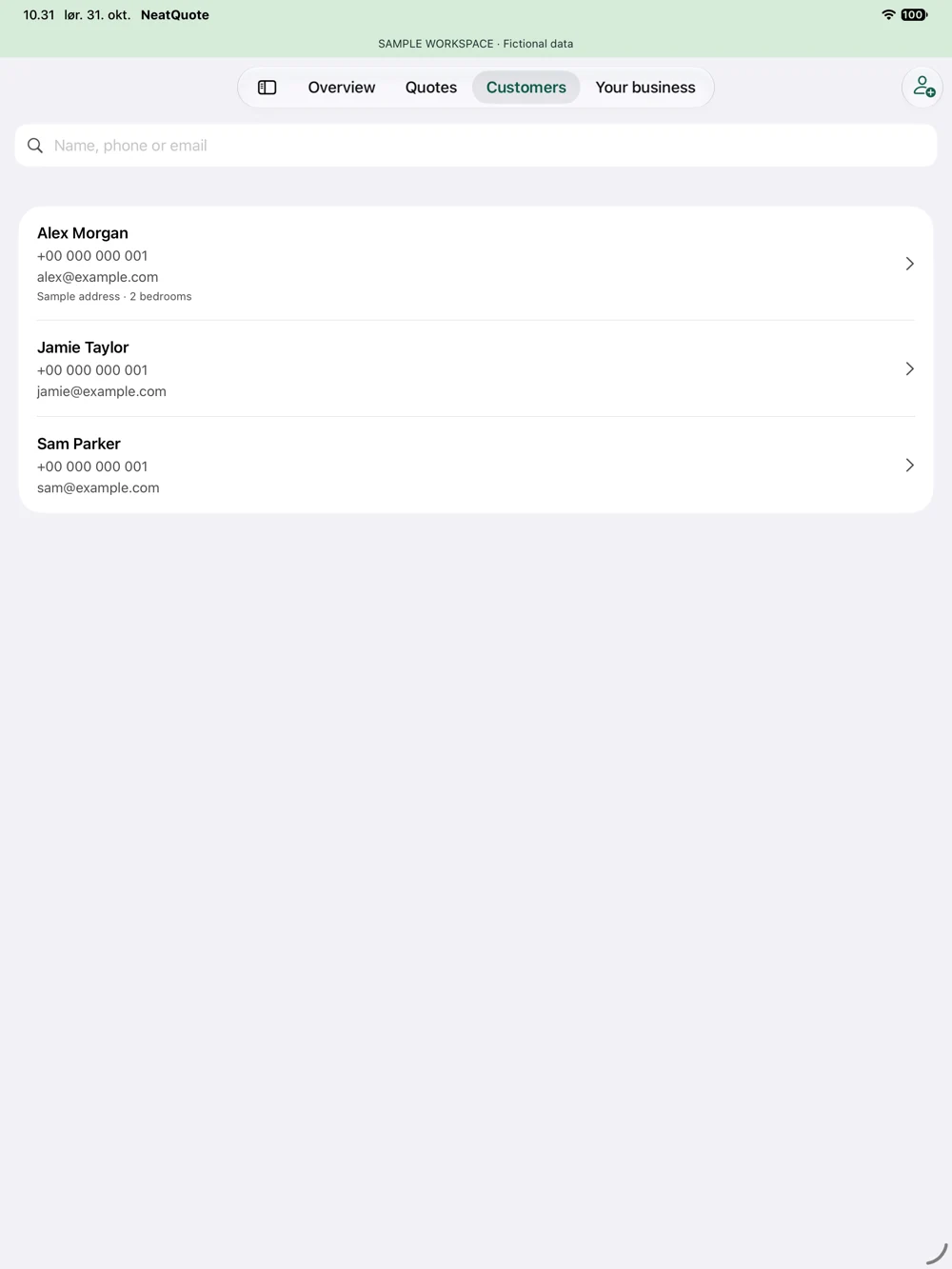
- Open Customers → New customer. Enter the name, service address and contact details, then save. Reopen the record to check the details.
- Choose Create a quote in Overview, or start a quote from the saved customer.
- Add a descriptive title on The job. Choose a saved customer, or enter the contact details directly on the quote.
- Choose the pricing route early. For calculated pricing, The job describes the agreement, The work estimates time, and The price brings together costs and the customer amount. For your own price, enter the amount and scope directly.
06 / 18
Scope, time and staffing
Describe what the customer gets per visit and include the time for the whole crew.
- On The job, choose a service and frequency. Check the quote date, validity, payment terms and agreed start date, if any.
- Use Notes for your client for access instructions and any boundaries the customer should see on the quote.
- On The work, choose the tasks, enter quantities and minutes per unit, and remove work outside the scope. Use Add a task for extras such as oven cleaning.
- Under Time that also matters, enter the crew size, travel time per person and any time allowance. Check the paid person-time in the calculation.
07 / 18
Price, costs and margin
Use the calculation to see what remains from the selling price after the expected costs.
- Open The price → Edit costs for this quote. Review the loaded hourly cost, supplies, travel, allocated overhead and any relevant payment fees.
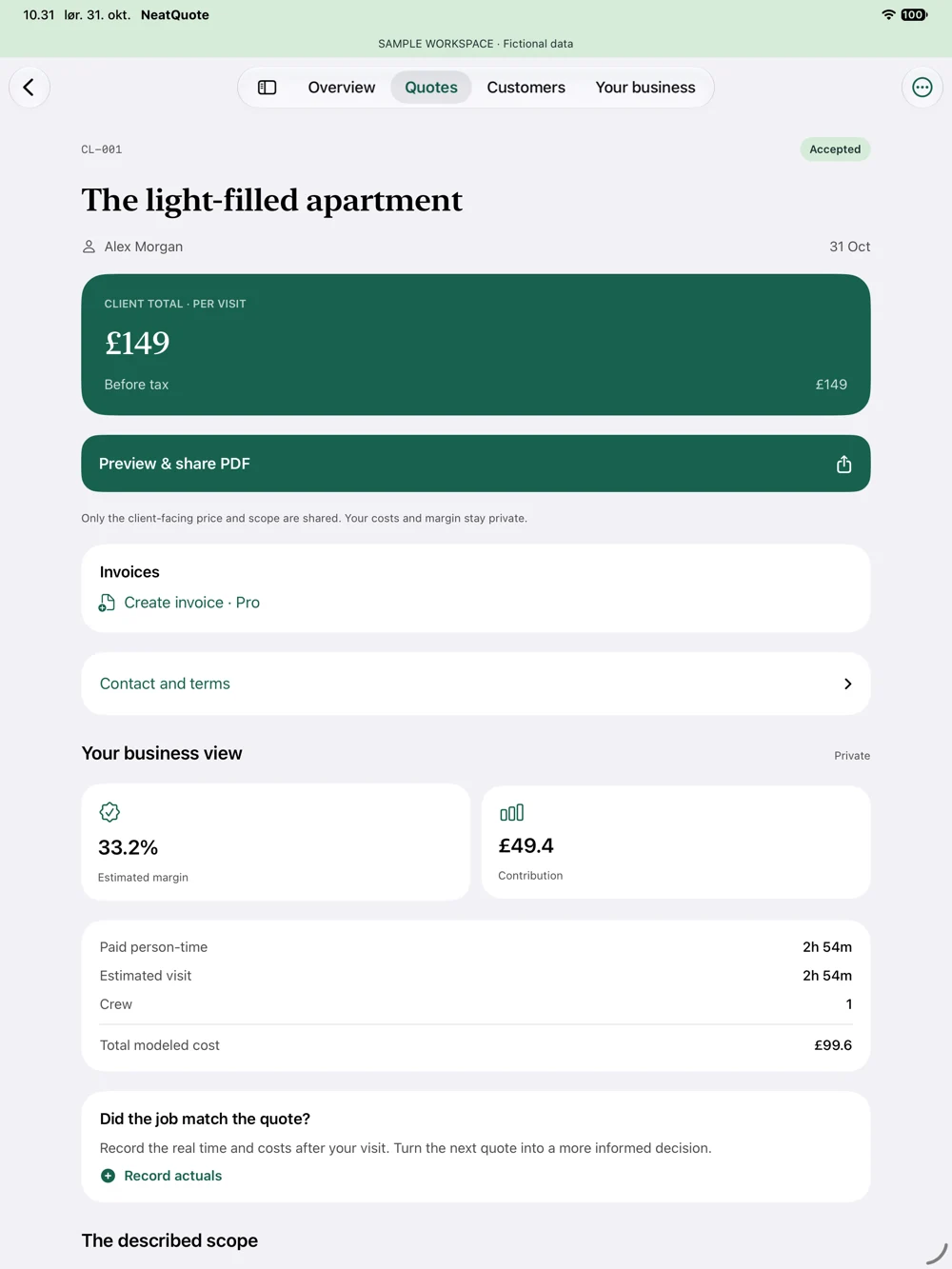
- Set your target margin. Review the suggested selling price before tax, estimated contribution and the customer's total.
- If you choose a different selling price, check the resulting margin before saving.
- Reopen the saved quote. Use Price calculation to review your assumptions and the PDF preview to check what the customer will receive.
08 / 18
Customer PDF and acceptance
Review the document, share it with the customer and record the outcome on the quote.
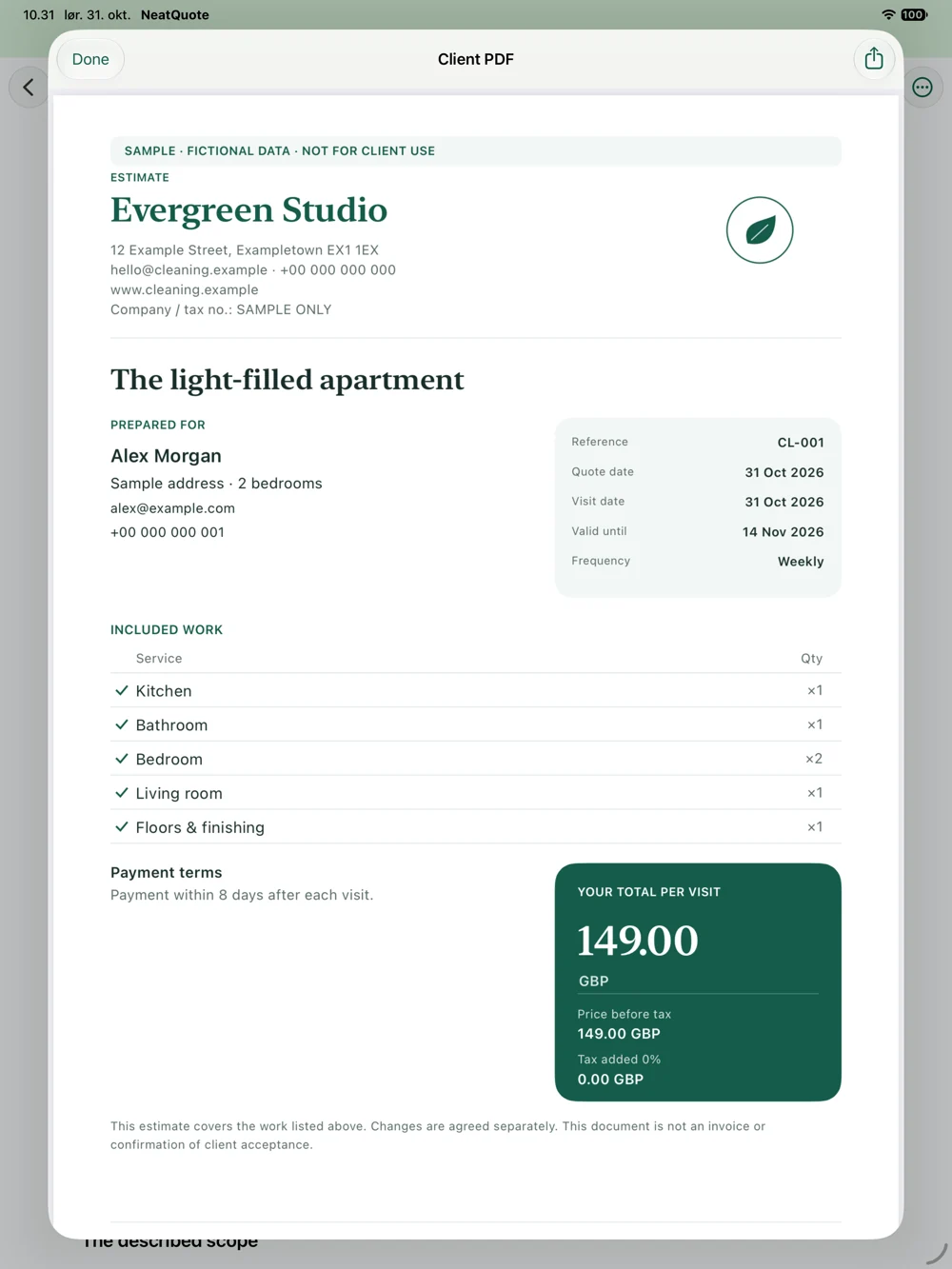
- Open the saved quote and Preview and share PDF. Check the customer, scope, price, dates and terms. Internal hourly costs and margin stay in the calculation.
- Share the PDF from the preview or choose Send to customer. Check the recipient and attached document before sending.
- Record the quote as sent after sharing. Record it as accepted when the customer confirms the agreement.
- If your company has online price acceptance, publish a link to the reviewed quote and follow its status in NeatQuote.
09 / 18
Declined, expired and archived quotes
Keep the quote list useful while preserving document history.
- Open a quote awaiting a customer reply. When the customer says no, choose Mark declined or the corresponding decline action.
- Use Reopen quote if discussions resume. Check validity, price and scope before sharing a new agreement.
- An unanswered sent quote shows Expired after its validity date. An accepted quote does not expire simply because that date has passed.
- Choose Archive to clear a quote from the active list. Open archived quotes and unarchive the record to work on it again.
- Check any active online links before recording a local decline. Follow the app’s instructions if an online quote must be closed first.
10 / 18
Agreements, calendar and visits
Use an agreement to plan recurring work and its individual visits to record completion.
- Open the accepted recurring quote and choose Create agreement. Check the start date and repeat frequency before saving.
- Open the agreement to check the dates and statuses of individual visits.
- Open Calendar from Overview. Pick Day or Week, move to the right date and open a visit to review the details.
- After the work is done, mark the individual visit complete under Agreements. When invoicing, select the eligible completed visits you want to include.
11 / 18
Timer and actual costs
Compare your quote with the time and costs the job actually required.
- Open the timer on the quote when work starts. Start it, pause when needed and check the duration before recording it.
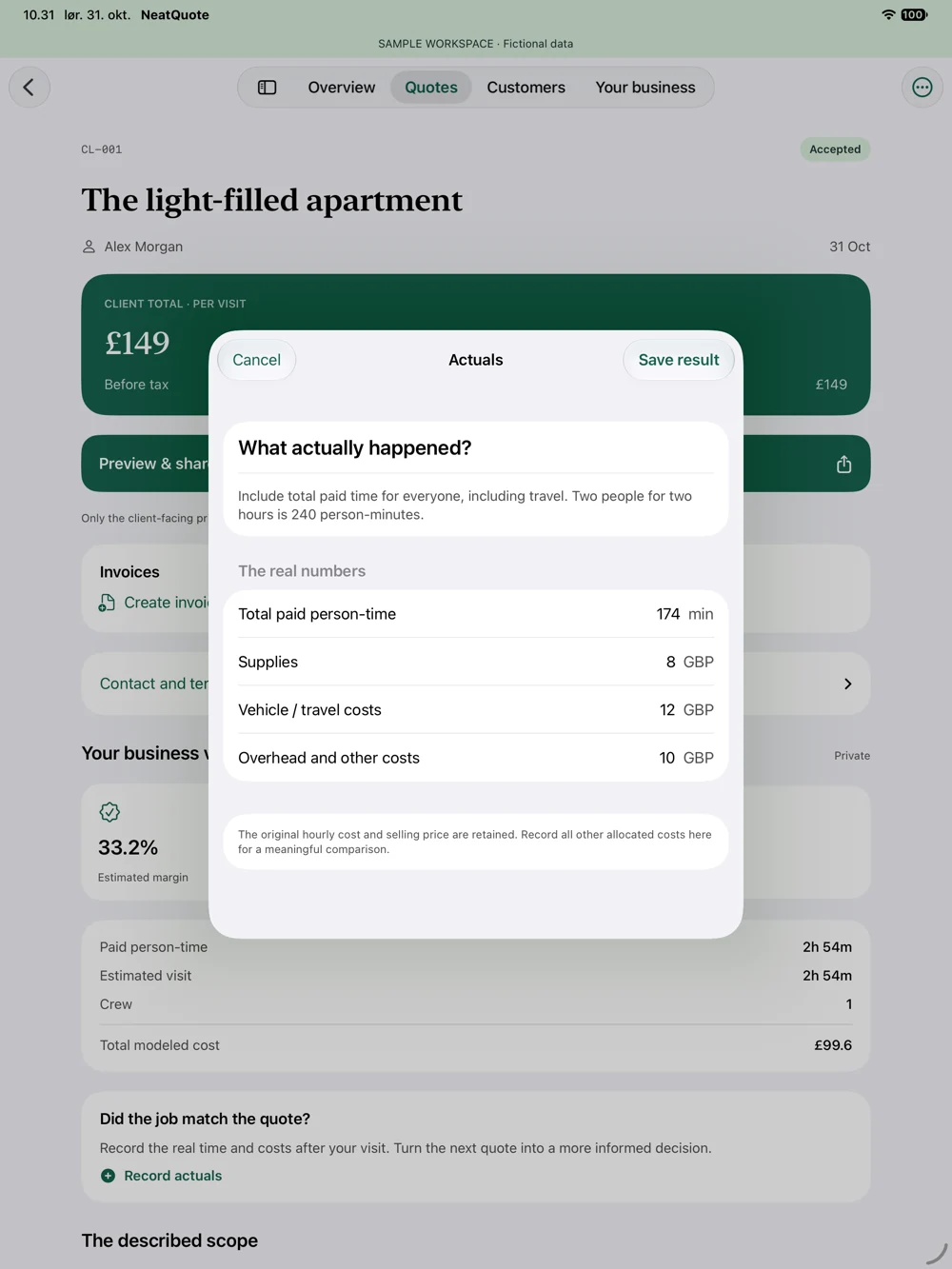
- If you already know the total paid time, use Actuals → Record actuals.
- Enter paid person-time for the whole crew, including paid travel. Update the costs if supplies or travel differed from your estimate.
- Save and compare the result with the quote. Use the difference when planning the next visit or costing a new quote.
12 / 18
Invoice draft and issued original
Set up the payment instructions and check the draft before issuing it.
- Open Your business → Payments → Bank and payment details. Save the business payment instructions for new invoices.
- On an accepted quote, choose Invoices → Create invoice. For recurring work, start from Agreements and select completed visits eligible for invoicing.
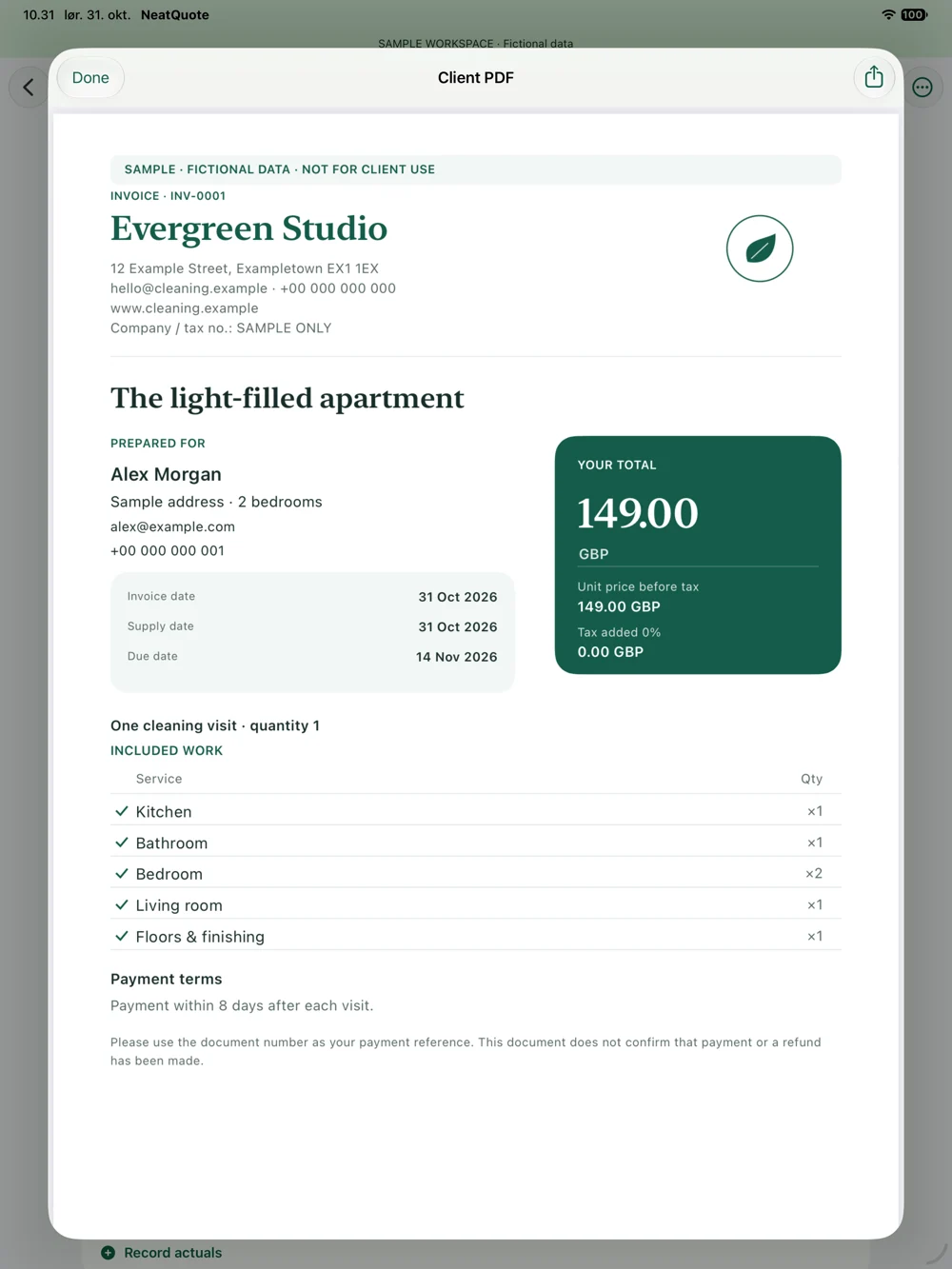
- Check the customer, date, due date, lines, amount and payment instructions. Choose Issue invoice and confirm. NeatQuote assigns a number and keeps the original.
- Open the issued invoice PDF to review it and share it with your customer.
13 / 18
Payments, credits and online options
Record payments once verified and keep the original documents when correcting an invoice.
- When a bank payment arrives, open the invoice and choose Mark as paid. Remove the payment record if you marked it by mistake. This changes the status in NeatQuote.
- Choose Create full credit note on the issued invoice, enter the reason and review the confirmation. Keep and share the numbered documents as needed. Issue a new invoice separately if a corrected one is required.
- Handle any refund separately. The credit note records the document correction.
- Where online card payments are available, the company owner connects a supported Stripe account under Payments. Review an eligible invoice before sharing the payment link. Stripe provides the checkout.
14 / 18
Company, employees and access
Use the company workspace for work you need to share with employees.
- Open Your business → Company & employees. The owner can create a company and invite staff.
- Employees select I have an invitation and use the company details from their administrator.
- As owner, review each person's access. Company permissions control who can see customer details, selling prices and internal costs.
- Share the jobs the team needs. Check the company workspace if an employee is looking for work you published.
15 / 18
Personal or company workspace
Choose where the work belongs before connecting synchronisation.
- A personal workspace is separate from the company’s shared records. On Apple devices, private iCloud can keep supported data together on your own Apple devices using the same iCloud account, once connected.
- A company workspace uses company sign-in and the company service. Verify the company, user and permitted access before creating or changing shared records.
- Share or connect only the workspace and records that belong in the company. Read the summary before confirming a transfer or opening an existing shared workspace.
- Check storage status and the latest sync. Resolve a pending upload or a problem before issuing another document that could duplicate the first.
- If a record is missing on another device, check the company, workspace, permissions and connection first. Export a backup before choosing a restore that replaces local data.
16 / 18
Web access step by step
Use the same company account from a supported browser on a computer or tablet.
- Open the company area in NeatQuote and verify that you are signed in as the owner of the correct company. Browser access requires the relevant app or company entitlement.
- Open the web app from the app page and choose company sign-in. Use your usual company login where offered, or an already registered passkey. A passkey is optional; the following steps explain how to set one up.
- Open Synchronisation → Web access → Set up web access in the updated NeatQuote app. If the button is not in your edition yet, update when the new release is available or use an already registered passkey.
- If the app confirms that your passkey is ready, open the web app and use that passkey to sign in.
- Otherwise, the app displays a private setup code. Open the web app using the app’s link and follow the website’s setup to create your own passkey. The code lasts 24 hours; generating a new code replaces the previous unused code.
- Check the company and workspace after signing in. Open the records and original documents you have shared with the company. If setup fails, verify company sign-in, app access and the connection, then try again.
17 / 18
PDF, CSV, backups and iCloud
Choose the right file for the job. The customer PDF, spreadsheet and backup serve different purposes.
- Open the invoice to retrieve the exact issued PDF. Combine several invoice PDFs where the option is available.
- Export a CSV from Finance to review selected figures in a spreadsheet or carry them over to your accounting records.
- Open Your business → Storage & backup. Export a full backup of your personal workspace and save it somewhere secure.
- Before importing a package, check what it will replace. Configure optional private iCloud sync separately.
18 / 18
Language, Pro and support
Adjust customer documents, restore purchase access or get help with a specific task.
- Choose the app language under Your business → App and help. Open Prices and PDFs to set the default currency for new quotes. In Customer PDF, review the logo, colour and document language.
- Find Pro plans under App and help → Make room for more work. On Apple, eligible users get 14 days from their first App Store download. The trial ends without an automatic charge.
- Use Restore purchases with the Apple Account that made the purchase. Manage or cancel your plan through your Apple Account. Saved documents remain available.
- A visit is missing from invoicing. Check that the visit is marked complete and that you opened the correct agreement.
- The price looks wrong. Review paid person-time, costs, margin and any manually offered price on the saved quote.